Where Does Your PDF Go When You Compress It Online?
We chose the same test PDF on iLovePDF, Smallpdf, and PDF24 and watched what each page sent. All three sent the whole file to a server within a second. Here is the method, the results, and how to check any site yourself.
In this article
Most online PDF tools work the same way. Your file is sent to their servers, processed there, and the result is sent back. That's how they're built, and it's not a secret. But "your file is uploaded" is easy to skim past, so we watched it happen.
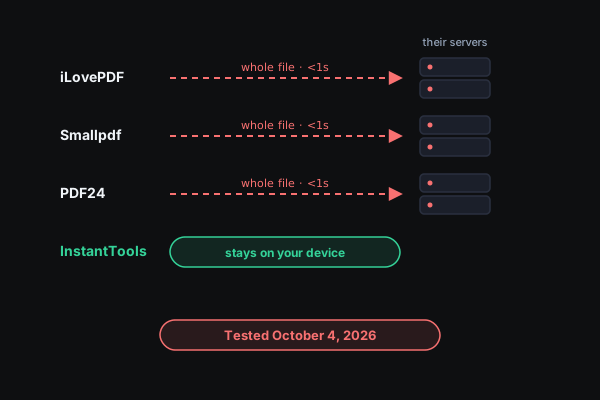
On October 4, 2026, we chose the same small test PDF on the "compress PDF" pages of three of the most popular PDF sites. Each one sent the whole file to a server, within a second of choosing it, before we'd clicked anything else.
What we did
We made a tiny PDF (908 bytes) containing a unique marker string, a line of text that appears nowhere else. Then, for each site:
- We opened its "compress PDF" page in Chrome, driven by an automated test browser.
- We chose the file with the site's own upload button, the same way you would.
- For 25 seconds after choosing it, we recorded every request the page sent, and checked each request body for the marker.
Step 3 has a catch. A browser's network log usually won't show you the contents of a file upload, so a check that only reads the log can miss the upload entirely. We learned that the hard way testing our own tools. So the check also runs inside the page: it sees every request body before it leaves (fetch, XMLHttpRequest, beacons, WebSockets, and WebRTC, in the page and in any background workers) and looks for the marker there.
We only checked whether the file left the device, and where it went. We didn't test how long any site keeps files, or what happens to them on the server.
What we found
| Site | Was the file sent? | Where it went | How soon |
|---|---|---|---|
| iLovePDF | Yes, the whole file | api65.ilovepdf.com, iLovePDF's upload API | Immediately |
| Smallpdf | Yes, the whole file | A Cloudflare R2 storage bucket named smallpdf-production-files | About 0.8 seconds |
| PDF24 | Yes, the whole file | filetools45.pdf24.org, a PDF24 file server | Immediately |
| InstantTools | No | Nowhere | — |
The server names change from visit to visit. On an earlier run the same day, the file went to api87.ilovepdf.com and filetools12.pdf24.org. The pattern didn't change.
We also noted which other companies' domains each page loaded while we were on it. These didn't receive the file; the marker turned up only in the uploads listed above. They're the ad and analytics services that see that you visited:
- iLovePDF: Google ad and analytics services (doubleclick.net, googlesyndication.com, Google Tag Manager), plus ad networks including Criteo, OpenX, Index Exchange, Flashtalking, and The Trade Desk.
- Smallpdf: Google Analytics and Tag Manager, Microsoft Clarity (a session-recording service), Bing, and TrackJS.
- PDF24: Google ad services, DoubleVerify, Xandr (adnxs.com), and Clinch.
- InstantTools: none on the tool page.
These lists change between visits too, so read them as examples, not a complete inventory.
Is that bad?
Not necessarily. A server-based tool needs your file on its server. That's the trade-off. If you use one, read its privacy policy for how long it keeps uploads. Whether the trade is acceptable depends on the file.
For a flyer or a menu, it probably doesn't make any difference. For a signed contract, a pay stub, a bank statement, or a passport scan, you're trusting that the copy on someone else's server is deleted when they say it is, and that nobody gets to it before then. You can't check either of those things from your side.
How InstantTools is different
Our PDF and image tools run inside your browser tab. The page downloads the code that does the work, and your file stays on your device. You don't have to take our word for it:
- Turn off your Wi-Fi. Load a tool, disconnect, and use it. It still works, because it never needed the network.
- Watch the counter. Every file tool page shows a live count of the bytes the page has sent while you use it.
- We run this test on ourselves. The same audit runs against all 22 of our file tools every time we push a code change, and fails if any of them sends the file.
If you need to send a sensitive PDF to someone, Prepare a Document to Send strips its metadata, redacts what you mark, watermarks it with who it's for, and compresses it, all without uploading it. To just make a file smaller, use the PDF Compressor.
Check any site yourself
You don't need an automated browser for this. On a computer:
- Open the site's tool page in Chrome, Edge, or Firefox.
- Open the developer tools (F12, or ⌘⌥I on a Mac) and go to the Network tab.
- Choose a file. Use something harmless, not the document you're worried about.
- Look for a new request with the method POST or PUT whose size is about the size of your file. That's the upload. Click it to see where it went.
If nothing that large appears, and the tool still works with your Wi-Fi off, the file stayed on your device.