Your Photos Know Where You Took Them. Here's How to Remove That
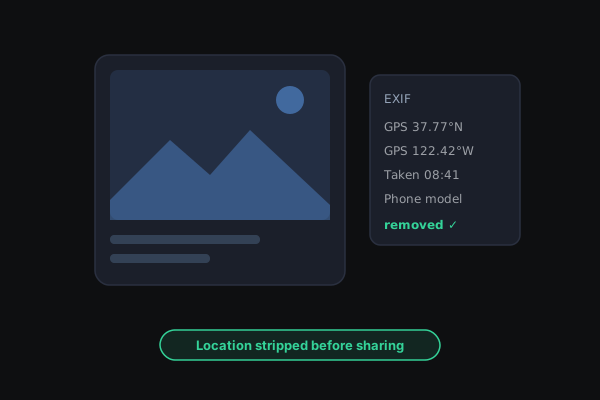
Most phone photos carry the GPS coordinates of where they were taken, along with the time and the phone model. Some platforms strip it when you post; email attachments and shared files usually don't. Here is how to check a photo and clean it before it goes anywhere.
In this article
Take a photo with your phone and, if the camera has permission to use your location, the file records exactly where you were standing. It's stored as EXIF metadata — a block of data inside the image file — alongside the date and time, the phone model, and the camera settings.
That's handy in your own photo library. It's less handy when you send a picture of your new apartment's floor plan, a product you're selling, or your kids in the garden, and the recipient can see the coordinates of your front door.
What's in a photo's metadata
- GPS coordinates — latitude and longitude, often accurate to a few meters.
- Date and time the photo was taken.
- Device details — the make and model of the phone or camera.
- Camera settings — exposure, focal length, whether the flash fired.
- Sometimes editing software and a thumbnail of the original image.
Screenshots generally don't contain GPS data. Photos taken with the camera usually do, unless you've turned location off for the camera.
Where it survives
Many large social platforms strip location data when you upload a photo. Don't rely on that being true everywhere. The original file — metadata included — usually travels intact when you:
- Attach a photo to an email.
- Share it through a cloud storage or file-transfer link.
- Send it as a "file" or "document" in a messaging app rather than as a photo.
- Upload it to a website or marketplace that keeps original files.
How to check a photo
- Mac: open it in Preview, choose Tools → Show Inspector, and look for a GPS tab.
- Windows: right-click the file, choose Properties → Details, and scroll to the GPS section.
- iPhone: open the photo in Photos and swipe up or tap the info button — if there's a map, there's location data.
Or drop it into the EXIF Data Remover: it shows what the photo contains, including whether it has GPS coordinates, before you clean it.
How to remove it
One photo, or a batch: the EXIF Data Remover strips the metadata in your browser — your photos are never uploaded. For JPG and PNG it removes the metadata without re-encoding the image, so the picture itself is bit-for-bit unchanged. Drop several photos at once and download them as a ZIP.
On iPhone when sharing: in the share sheet, tap Options at the top and turn off Location before you send.
Going forward: turn off location access for your camera app in your phone's privacy settings if you'd rather your photos never record it. You'll lose the map view in your photo library, so it's a trade-off.
Before you sell, rent, or post
A good habit: anything photographed at home and going to a stranger — marketplace listings, rental inspections, insurance claims, photos of documents — gets cleaned first. It takes seconds, and the coordinates of where you live stay with you.