How to Redact a PDF So the Text Is Actually Gone
A black rectangle over text is not a redaction — the words are usually still in the file, one copy-paste away. Here is why drawn-on boxes fail, what real redaction does differently, and a two-minute check to run before you send anything.
In this article
In January 2019, lawyers for Paul Manafort filed a court document with several passages blacked out. An error in the redaction exposed the hidden passages anyway — including that he had met with Konstantin Kilimnik while he was campaign chairman. It made headlines because of who it was. The mistake itself is common: someone draws black boxes over text and assumes the text is gone.
It usually isn't. Here is why, what to do instead, and how to check your own file before it leaves your hands. If you just want to get it done, our Redact PDF tool does it properly in your browser and checks its own work.
Why a black box doesn't hide anything
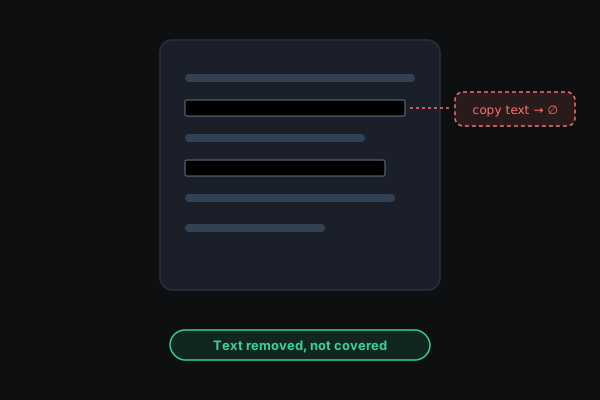
A PDF page is a stack of layers. The text you see is stored as text: characters, fonts, and positions. When you draw a rectangle in most PDF editors, you add a new shape on top of that text. You have changed what the page looks like, not what the file contains.
Anything that reads the text rather than the pixels can still get to it:
- Copy and paste. Select across the black box, copy, paste into a note. The "hidden" words come along.
- Search. Press Ctrl+F or ⌘F and type a word you redacted. Many viewers will highlight it under the box.
- Text extraction. Screen readers, indexing tools, and any script that pulls text from PDFs ignore your rectangle.
- Moving the shape. In many editors, the box is still an editable object. Anyone can click it and drag it aside.
There are quieter leaks too. The document's metadata can carry the author's name, the company, and the software used. Comments and hidden layers can hold earlier wording. And PDFs saved with "incremental updates" keep earlier versions of changed content inside the same file — the new version is appended, the old one is left behind.
What real redaction does differently
Real redaction removes the content under the box from the file. There are two ways to get there:
- Delete the underlying objects. Professional tools like Adobe Acrobat Pro's Redact feature cut the text, images, and vector shapes inside the marked area out of the page, then let you "apply" the redactions so they can't be undone. This keeps the rest of the page as selectable text, but it depends on the tool parsing the page perfectly.
- Flatten the page. Render the page to an image, paint the boxes into the pixels, and replace the page with that image. Nothing from the original page survives except what you can see. The trade-off is that the page's remaining text becomes part of a picture: you can read it, but you can't select or search it.
Our tool uses the second approach, but only on pages that actually have redactions. Pages you don't touch are copied over unchanged, with their text intact.
Redact a PDF step by step
- Open Redact PDF and drop your file in. It opens in your browser tab; nothing is uploaded.
- Type the things you want gone — a name, an account number, an address — and press Enter after each.
- Leave the detectors on. They catch email addresses, phone numbers, US Social Security numbers, card numbers, and IBANs. Card numbers and IBANs are checked against their built-in checksums, so random strings of digits don't set them off.
- Press Find and mark. Every match on every page is boxed. Untick anything that should stay visible.
- Drag on the page to cover anything search can't read: a signature, a photo of an ID, a handwritten note, a stamp.
- Press Redact. The tool rebuilds the redacted pages, then opens the finished file and searches it for every item you marked. If anything survived, the download stays locked and it tells you what it found.
The two-minute check, whatever tool you use
Before you send a redacted PDF, open the finished file — not the one you edited — and:
- Search for each redacted word. No results is what you want.
- Select all text on a redacted page and paste it somewhere. The hidden words should not appear.
- Open the document properties. Look for an author, title, or company name you didn't mean to share.
- Open it in a second viewer (a browser, a different PDF app). Different software exposes different leftovers.
What people usually forget to redact
- The last page. Signatures, account footers, and reference numbers love to hide there.
- Headers and footers that repeat on every page.
- Other people's names, emails, and phone numbers in a thread or a contract.
- Account numbers. Most recipients need the last four digits at most.
- Dates of birth, home addresses, and ID numbers on scans of cards.
Watch out for scanned PDFs
A scan is a picture of a page, so search can't see the words in it — you'll need to draw boxes by hand. But a scan that has been run through OCR is different: it carries an invisible text layer on top of the image so you can search it. That invisible layer is exactly the kind of thing a black box won't remove. Flattening the page removes it along with everything else.