How to Compress a PDF Without Uploading It Anywhere
Most 'free PDF compressors' work by taking your file onto their servers. Here is how in-browser compression works, why it is safer for contracts and records, and how to verify with your own network tab that nothing leaves your machine.
In this article
Search for "compress PDF" and every result works the same way: you upload the document, a server squeezes it, and you download the result. The compression is real — but so is the copy of your file that just landed on someone else's infrastructure. For a meme that is fine. For a signed contract, a medical record, or a payroll export, it should give you pause.
There is a second way to do it, and it requires nothing special: modern browsers can run the entire compression engine themselves.
How server-side compression works
The classic flow has four steps: your file travels up, sits in a queue, gets processed, and travels back down. Reputable sites delete uploads on a schedule and say so in their privacy policies. But three things remain true regardless of policy:
- A copy existed. Even briefly, your document was readable on hardware you do not control.
- Transit is part of the attack surface. TLS protects the journey, but the endpoints — including misconfigured logging or backups — are out of your hands.
- You cannot verify deletion. "We delete after processing" is a promise, not something you can check.
NoteNone of this means upload-based tools are malicious. It means the trust model is "policy-based" rather than "physics-based." For sensitive documents, physics is better.
How in-browser compression works
A browser today ships a full WebAssembly runtime. That means the same kind of code that runs on a compression server — PDF parsing, image re-encoding, stream optimization — can be delivered to your machine as a small engine and executed locally.
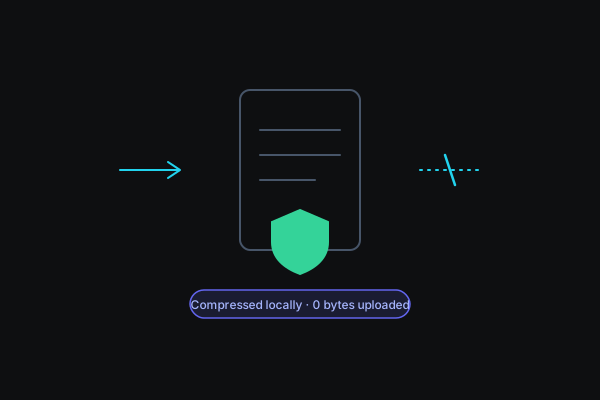
The flow inverts: instead of your 40 MB document going to the server, a ~1 MB engine comes to you. Your PDF is parsed in your browser's memory, embedded images are re-encoded at a lower quality or resolution, dead objects are dropped, and the rebuilt file is handed straight to your Downloads folder. The document never crosses the network.
This is exactly how our PDF Compressor works.
Verify it yourself in 30 seconds
You do not have to take any site's word for this — including ours:
- Open the compressor page and let it finish loading.
- Press F12 (or right-click → Inspect) and switch to the Network tab.
- Drop in your PDF and run the compression.
- Watch the request list. You will see the page assets and the engine download — and no request carrying your file.
Do the same on an upload-based compressor and you will see a POST request roughly the size of your document. That single observation is the whole difference between the two architectures.
What about quality and size?
Compression quality is determined by the algorithm, not by where it runs. In-browser compression re-encodes embedded images (usually the bulk of a heavy PDF) and strips redundant structure, the same levers server tools use. Three practical tips:
- Scanned documents compress dramatically — scans are just images, and image re-encoding is where the big wins are.
- Text-only PDFs barely shrink — they are already small; if a 200 KB text PDF will not get smaller, it does not need to.
- Pick the lightest setting that still reads well. Run it twice with different levels; each pass is free and takes seconds.
Pro tipIf the file is for email, aim under 5 MB — it clears effectively every corporate gateway. Our compressor shows the output size before you download.
What actually makes a PDF heavy
Knowing where the megabytes live tells you what compression can and cannot do:
- Scanned pages are photographs of paper — each page is a full image, often at print resolution. This is why a 30-page scanned lease can weigh 25 MB while a 300-page digital book weighs 2 MB. Scans are also where compression wins biggest, because re-encoding those page images at screen resolution routinely cuts 70–90%.
- Embedded photos in reports and decks are usually inserted at camera resolution (4000+ pixels wide) and displayed at a fraction of that. Re-encoding them to what the page actually shows is pure savings with no visible difference.
- Fonts and duplicated objects add weight when a document has been merged, edited, and re-saved many times. Rebuilding the file discards the accumulated dead structure.
- Actual text is nearly free. If a text-only PDF is already small, no compressor — local or server-side — has anything to remove. That's not a tool failure; it's a file that was never the problem.
The practical takeaway: if your PDF is heavy because of scans or photos, expect dramatic results. If it's heavy because it's genuinely 900 pages of text, consider splitting it instead with the PDF Merger & Splitter and sending the relevant range.
The full pre-send routine
Compression is usually one step in getting a document out the door. The local-only version of the whole routine:
- Combine the attachments into one file with the PDF Merger & Splitter — one document forwards better than six.
- Sign it if needed with Sign PDF, before compression, so the signature is part of the final file.
- Compress with the PDF Compressor, aiming under 5 MB for email.
- Check the preview before downloading — if fine print in a scan got soft, step the quality up one notch and re-run. Each pass takes seconds and costs nothing.
Every step runs in the browser, so the document you were careful about in steps 1–3 doesn't quietly upload in step 4.
When a server-side tool is still the right call
Honesty matters here: very large files on weak hardware (an old phone compressing a 500 MB scan) can be slow in-browser, and a few exotic PDF features are handled better by heavyweight server engines. If your document is not sensitive and you need those edges, use whichever tool does the job. For everything you would not forward to a stranger, keep it local.
And if you want the receipts rather than the argument: we published the network-tab verification of our own tools — request logs included — in the Privacy Audit.