How to Prepare Documents for Email: Compress, Merge, and Convert PDFs in One Flow (2026 Guide)
Learn how to prepare documents for email the smart way in 2026. A complete workflow to merge files, convert to PDF, and compress attachments so they send fast and look professional—without hitting size limits.
In this article
Sending documents by email looks trivial until the moment you hit send and the message bounces. Gmail caps attachments at 25MB. Outlook stops at 20MB. Many corporate gateways enforce 10MB. That contract bundle you assembled — a signed PDF, two image proofs, a quick explanation — is suddenly "blocked by your recipient's server."
The fix is not to use a larger email host. The fix is to package documents deliberately: convert, merge, compress, and sanitize. Done once, it becomes a two-minute habit. Done well, it makes you look like the most organized person your clients work with.
NoteMost email providers cap attachments at 20–25 MB per message. Gmail allows 25 MB; Outlook stops at 20 MB; many corporate gateways enforce 10 MB. Always assume the lowest common limit when preparing files for external recipients.
Why Attachments Fail
Three things cause almost every "email could not be delivered" error:
- Size. The attachment exceeds the smallest cap along the delivery path, which is almost always the recipient's server rather than yours.
- Type. Some gateways block specific file types (.zip, .exe, .docm, sometimes .svg) for security reasons.
- Metadata. Internal reviewer names, tracked changes, and comments from the original document author are occasionally flagged by compliance tools or — more embarrassingly — are visible to the recipient.
Preparing a document for email is the practice of fixing all three in one pass.
The Four-Step Recipe
Step 1: Convert Everything to PDF
Before you compress or merge, get every file into a common, portable format. PDF is universally readable, preserves fonts and layout, and is the least likely to be rejected by a gateway.
- Word and Google Docs → File → Export as PDF (or "Print to PDF").
- Images → if they are illustrative content, embed them in a one-page PDF. If they are standalone deliverables (product mockups, screenshots), you can leave them as JPEG/WebP but be prepared to compress.
- Spreadsheets → export the relevant tabs as PDF. If the recipient needs the live file, send the .xlsx separately and rely on a cloud link.
Step 2: Merge Related PDFs
If your message includes three PDFs that tell a single story — a proposal, a statement of work, and a NDA — merge them into one well-titled document. Recipients prefer one well-organized PDF to three loose files with confusing names.
A good merged document has:
- A clear filename:
2026-03-14 - Acme Inc - Proposal Bundle.pdf. - Either a one-page cover sheet or a table of contents at the top.
- Bookmarks (automatically generated from the source filenames in most merge tools).
Pro tipRun a quick size check before composing your email: drag the file to our [PDF Compressor](/pdf/compress-pdf) and note the output size before downloading. If it fits under 5 MB, you are clear. If not, increase the compression level and try again — each pass is free and instant.
Step 3: Compress Without Degrading
Now that you have a single PDF, run it through a compressor. For the mathematics of why this works and what settings to pick, see our complete PDF compression guide. The short version:
- Downsample embedded images to 150 DPI.
- Recompress images at quality 80.
- Strip metadata and unused resources.
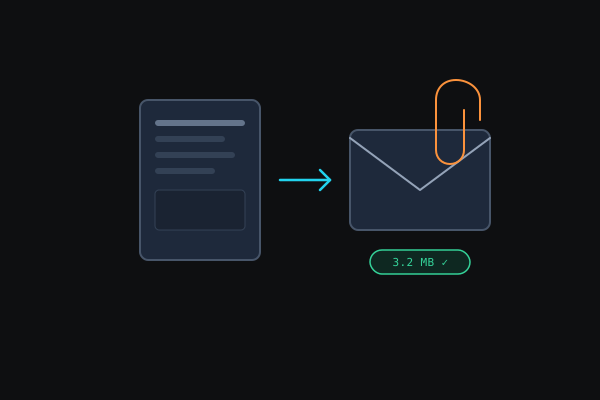
Use our PDF Compressor to run the compression entirely in your browser. A 40MB contract bundle routinely becomes a 3–4MB bundle with no visible degradation.
WarningServer-side PDF compressors upload your document to a third party. For contracts, NDAs, or anything with client data, this is unacceptable. The browser-based [PDF Compressor](/pdf/compress-pdf) at InstantTools runs entirely locally — your file never leaves your device.
Step 4: Sanitize Metadata and Comments
This is the step most people skip and later regret. PDFs carry metadata about every author and editor who touched the source file. Word documents frequently retain tracked changes and reviewer comments even after you "accept all." Before sending to an external party:
- Open the PDF in a reader and check Document Properties. Verify the Author and Title fields are what you want the recipient to see.
- If the source was a Word or Google Doc, re-export from a clean copy with all comments resolved and tracked changes accepted.
- For image attachments, strip EXIF data. Exported GPS coordinates in a photo from your laptop can be a surprise.
Images: A Separate Conversation
Photographs and graphics follow their own rules. If they travel as standalone attachments rather than embedded in a PDF:
- Resize first. A 6MB photo at 1920×1080 is a waste of bandwidth for a recipient who will view it on a phone. Our Image Resizer handles this in one drag-and-drop.
- Choose the right format. Photos → JPEG or WebP. Screenshots and graphics → PNG or lossless WebP. See our format guide for the decision tree.
- Compress appropriately. Quality 85 for JPEGs intended to be viewed on screen; quality 95+ if they will be printed.
Our Image Converter flips any PNG or JPG into WebP (or the reverse) in the browser — WebP produces files around 25–35% smaller than equivalent JPEGs with no visible quality loss. For compatibility-critical emails, stick with JPEG; for internal stakeholders who will open on a modern device, WebP works beautifully.
When the File Is Still Too Big
Sometimes the content is genuinely large — a 200-page engineering report with embedded schematics, a photo gallery from a job site. In those cases, switching to a sharing link is the right move:
- Google Drive, Dropbox, OneDrive, iCloud — all let you generate a time-limited, password-protected link.
- WeTransfer, Smash, Send Anywhere — ad-hoc sharing without an account requirement.
If you do share a link, always paste the link in the email body, briefly explain what the recipient will find inside, and set an expiration or password appropriate to the sensitivity of the content.
ImportantBefore sending to an external party, open the compressed PDF and check Document Properties (File → Properties in any reader). Verify that Author, Title, and Creator fields show only what you intend the recipient to see. Stale reviewer names in metadata have caused more than one embarrassing disclosure.
A Sample Workflow You Can Steal
Here is the exact sequence we recommend for a contract bundle going to a client:
- Export each source document to PDF from its native app.
- Review each PDF for stray comments or tracked changes.
- Merge the PDFs into a single bundle in the order you want the client to read them.
- Rename the merged PDF to something meaningful:
2026-03-14 - Acme Inc - Agreement Bundle.pdf. - Run the bundle through the PDF Compressor at the Standard preset.
- Open the compressed file, verify the Document Properties, and read the first two pages to sanity-check that everything looks right.
- Attach it to an email with a short, professional cover note that names each included document in order.
The whole process takes about three minutes once it is a habit.
Our Secure Document Prep workflow walks through stripping hidden details, redacting, and stamping a copy before you send it.
Frequently Asked Questions
What if my client asks for a Word document instead of a PDF? Send both: the Word source for editing and a PDF for reference. Clients often ask for Word and then use the PDF anyway because it opens faster and renders identically on every device.
Can I password-protect a PDF for email? Yes, but coordinate the password out-of-band. Sending the password in the same email defeats the purpose. A short phone call or secure messaging app works best.
Why is my attachment flagged as spam? Common triggers: generic filenames like document.pdf, no body text, suspicious file types (.docm, .zip), and encrypted attachments without context.
How small should I aim for? Under 5MB is the safe zone for almost every email system. Under 10MB works for most. Over 15MB starts to fail.
Takeaway
Preparing a document for email is not about the file format. It is about thoughtfulness: the right size, the right name, the right metadata, and a cover note that respects the recipient's time. Build a two-minute routine around the four steps — convert, merge, compress, sanitize — and you will stop having emails bounce back and start looking like the most organized person in the thread.