Image Format Guide: JPG vs PNG vs WebP
Complete comparison of JPG, PNG, and WebP image formats. Learn which format to use for web, print, and storage, plus how to convert between formats for optimal results.
In this article
Picking the right image format used to be easy: photos were JPEG, graphics were PNG, and GIFs were for animations. That logic still works, but in 2026 it leaves 30–40% file size on the table. WebP, and increasingly AVIF, have quietly become better defaults for almost every use case. Here is what each format is actually good at, when to use which, and how to convert between them without losing quality.
The Short Version
If you only remember one thing from this article: use WebP for web images in 2026. It is smaller than JPEG for photos, smaller than PNG for graphics, supports transparency and animation, and is supported in every modern browser.
Fall back to JPEG and PNG only when you cannot control the renderer — for example, when uploading to a legacy platform, emailing a file, or exporting for print.
NoteWebP browser support exceeds 96% globally as of 2026 — higher than many web fonts in common use. The only notable exception is Internet Explorer, whose global market share has collapsed to rounding error. You can safely use WebP as your primary web image format.
JPEG: The Photograph Workhorse
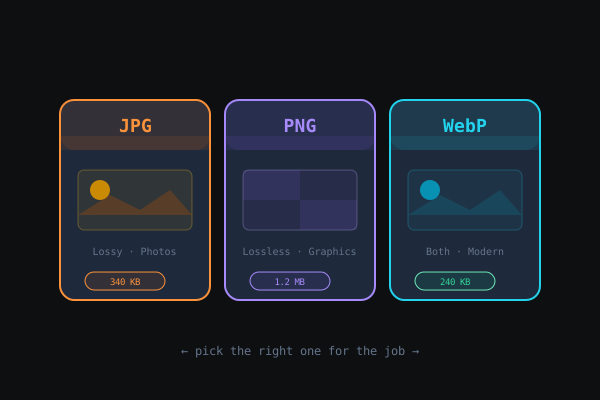
JPEG (often written JPG) has been the web's default photograph format since 1992. It is lossy by design — the encoder throws away visual detail in ways the human eye is bad at noticing. That makes it extraordinarily efficient for photographs, where smooth gradients and organic textures mask compression artifacts.
Strengths
- Universal support. Every piece of software on Earth reads JPEG.
- Excellent for photos. A quality setting of 80 gives you roughly a 10× reduction over uncompressed data with no visible artifacts.
- Highly configurable quality slider.
Weaknesses
- No transparency. A logo with a transparent background becomes a logo on a solid-color square.
- Artifacts on sharp edges. Text, line art, and UI screenshots look blurry and ringed.
- No animation.
- Every re-save degrades quality further.
Use JPEG when: You are publishing photographs where file size and broad compatibility matter, you are emailing pictures, or the destination explicitly requires JPEG.
Converting from PNG to JPEG is often a smart space-saver for photographic content; our Image Converter set to JPG handles this instantly in the browser.
PNG: The Lossless Graphics Default
PNG was designed in the mid-1990s specifically to replace GIF while adding better compression and full 24-bit color. It is lossless — no data is thrown away. What you encode is exactly what comes back out.
Strengths
- Perfect for graphics with sharp edges: screenshots, logos, icons, UI elements.
- Supports transparency, including smooth alpha gradients.
- Lossless — no quality degradation from repeated saves.
Weaknesses
- File sizes for photographs are huge compared to JPEG. A 12-megapixel photo can easily be 20MB as PNG and under 3MB as high-quality JPEG.
- No animation.
- Modern alternatives (WebP, AVIF) beat it on size at equivalent quality.
Use PNG when: You need transparency and cannot use WebP, you are archiving a master image you will later re-encode, or you are working with text/UI content where JPEG artifacts would be visible.
Converting JPGs to PNGs has a narrower use case — usually preparing an image for transparency editing in a tool like Figma or Photoshop. Our Image Converter set to PNG handles this locally.
WebP: The Modern Default
Google introduced WebP in 2010 and spent the following decade gradually bringing every browser on board. As of 2026, browser support exceeds 96% globally — higher than WOFF2 web fonts — and there is almost no reason not to use it.
Strengths
- Lossy mode: typically 25–35% smaller than JPEG at equivalent visual quality.
- Lossless mode: typically 20–30% smaller than PNG.
- Supports transparency in both lossy and lossless modes.
- Supports animation, effectively replacing GIFs.
- Excellent browser support.
Weaknesses
- Support gaps on legacy platforms and some email clients.
- Some photo-editing apps still treat WebP as a second-class citizen.
- Older operating system image viewers may need a plugin.
Use WebP when: You are publishing images to the web, serving content to a modern audience, or storing your own content at good compression. In 2026 it is the right default for almost every web image.
Our Image Converter set to WebP accepts PNG, JPG, and GIF inputs and produces WebP outputs in your browser. No server upload, no retention concerns.
What About AVIF?
AVIF, based on the AV1 video codec, is even more efficient than WebP — typically 20–30% smaller at the same visual quality. It supports transparency, wide color gamut, and HDR. Browser support has crossed the line where you can use it in production, but encoding is slow, some tools still do not support it, and the compression savings over WebP are marginal in most real-world cases.
Practical advice for 2026: If you are running a CDN that auto-negotiates formats (like Cloudflare Images, Cloudinary, or Next.js Image Optimization), let it serve AVIF where supported and WebP otherwise. If you are hand-exporting one image at a time, WebP is the sweet spot for effort per saved byte.
GIF Is Finished
Animated GIFs were a genuinely useful format in 2005. In 2026, they are a liability. Animated WebP and MP4 both produce smaller, higher-quality animations.
If you are publishing a GIF today, export it as an MP4 (for silent video players) or animated WebP (for contexts where you actually need the image tag). Both will be dramatically smaller and higher-quality.
ImportantFor email attachments, always use JPEG for photos and PNG for graphics — not WebP. Enterprise email gateways and many mail clients still do not preview WebP correctly. Your recipient may see a broken image or no image at all.
When You Still Need a Specific Format
Even in 2026, a few situations force your hand:
- Email attachments. JPEG or PNG for portability. Some enterprise email gateways strip or fail to preview WebP.
- Platform uploads. Some platforms (older CMSs, certain marketplaces, university admissions portals) only accept specific formats.
- Print production. High-quality TIFF or PDF is still the right answer for production print. JPEG at quality 95+ is acceptable for internal proofs.
- Archival masters. PNG or TIFF. Keep a lossless copy and re-encode from it as needs change.
A Decision Tree You Can Actually Use
Are you publishing to the web?
  ├── Yes → WebP (fall back to JPEG/PNG only if you must)
  └── No → What kind of destination?
        ├── Email / legacy platform → JPEG for photos, PNG for graphics
        ├── Print → PDF or TIFF, JPEG ≥ 95 for proofs
        └── Archive / master copy → PNG or TIFF (never a re-saved JPEG)
Pro tipUse the `<picture>` element in your HTML to serve WebP with a JPEG fallback. Modern browsers pick WebP automatically; any browser that cannot handle WebP falls back to JPEG. This gives you 25–35% smaller files for most users with zero compatibility risk.
Converting Between Formats Without Losing Quality
Every conversion has rules. Break them and you end up with muddy images.
- Never re-save a JPEG as another JPEG if you can avoid it. Each round of encoding loses detail. Work from the PNG master.
- PNG → JPEG: safe for photographs, bad for text. Inspect the result before committing.
- PNG → WebP lossless: always safe. Strictly smaller with no quality loss.
- JPEG → WebP lossy: safe, but you are not getting perfect quality — you are getting a slightly smaller version of an already-lossy source.
- Anything → AVIF: fine, but slow to encode. Worth doing for high-traffic pages, overkill for one-off images.
Our browser-based Image Converter runs PNG ↔ JPG, WebP encode/decode, and every other common pair without uploading the original anywhere.
Frequently Asked Questions
Is WebP really supported in every browser? Chrome, Edge, Firefox, Safari, Opera, Samsung Internet, and every mobile browser worth naming all support WebP. Internet Explorer is the only notable exception, and its global share has collapsed to rounding error.
Will WebP hurt my SEO? No. Google loves WebP — their PageSpeed Insights tool actively recommends it.
Why did my PNG get larger when I converted it to WebP? You probably selected lossless mode on a photograph. Use lossy WebP for photos. Lossless WebP is best for graphics with sharp edges.
Should I serve multiple formats from my own site? Use the <picture> element with WebP as the first source and JPEG as the fallback. Modern browsers will pick WebP automatically; older browsers will pick the fallback.
Takeaway
JPEG is for photographs where WebP is not available. PNG is for masters and situations needing transparency where WebP is not available. WebP is for everything else in 2026 — which is to say, for almost everything. Learn your tools, keep your master copies lossless, and convert on demand. Your Core Web Vitals, your storage bill, and the person loading your site on a 4G connection will all thank you.