How to Install Any Website as an App (Chrome, Edge, Safari, iPhone, Android)
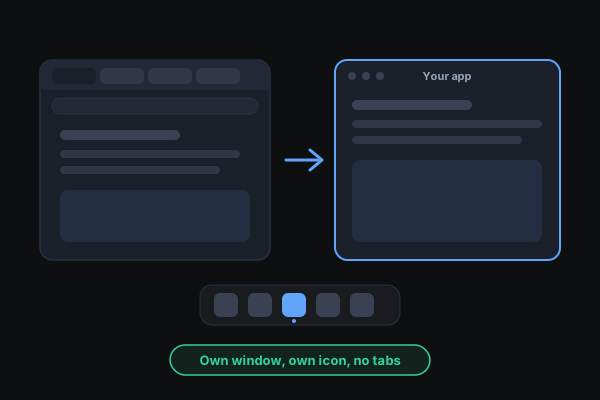
Every major browser can turn a website into something that looks and launches like an app: its own window, its own icon, no tabs in the way. Here is how to do it on each one, what actually changes when you do, and how to undo it.
In this article
Most of the "apps" you use every day are websites: your email, your calendar, your docs, the tool you open twenty times a day. You don't need to wait for anyone to ship a desktop version. Every major browser can install a website so it opens in its own window, gets its own icon in your dock, taskbar, or home screen, and stays out of your pile of tabs.
It got a little easier this month. In October 2026, Chrome 155 for Googlebook started letting people install any page as a windowed app, not just sites built for it. Desktop Chrome, Edge, and Safari already do this, so here is how it works everywhere.
What changes when you install a website
An installed website is still the same website. What changes is how it opens:
- Its own window, without the address bar and tabs, so it feels like a separate program.
- Its own icon in the dock, taskbar, Start menu, app launcher, or home screen. You can pin it, and switch to it with Cmd+Tab or Alt+Tab.
- Same sign-ins. In Chrome, Edge, and Safari it shares your browser's logins, so you're usually already signed in.
What doesn't change: nothing extra is downloaded beyond the site itself. If a site needs the internet in a tab, it needs it as an app too, unless the site was built to work offline.
That last part is the real difference between sites. Some websites ship a manifest and a service worker, which makes them proper web apps (often called PWAs). Those can work offline, show up in "Open with" menus for files, and update themselves. Any other site still installs, but you just get the window and the icon.
Chrome on Windows, Mac, Linux, or ChromeOS
- Open the site in Chrome.
- Click the three-dot More menu at the top right.
- Choose Cast, save, and share, then Install page as app...
- Confirm the name and click Install.
Sites built as web apps also show an Install icon at the right end of the address bar, which does the same thing in one click.
To open it later, click its icon in your dock, taskbar, or app launcher, or find it at chrome://apps. Right-click it there to choose Launch at startup for something you open every morning.
Microsoft Edge
- Open the site in Edge.
- Click the three-dot Settings and more menu.
- Go to Apps, then Install this site as an app.
- Click Install.
Edge lists everything you've installed at edge://apps, where you can pin apps to the taskbar or Start, or remove them. Menu wording shifts a little between Edge versions; if you don't see it, look under More tools.
Safari on Mac
This needs macOS Sonoma 14 or later.
- Open the site in Safari.
- Choose File > Add to Dock, or click the Share button and choose Add to Dock.
- Change the name or icon if you like, then click Add.
The app is saved in the Applications folder inside your home folder, so you can also open it from Spotlight. If you were signed in to the site in Safari, you're usually signed in to the app too. Its settings let you change the name, icon, and whether it shows navigation buttons.
iPhone and iPad
- Open the site in Safari.
- Tap the Share button, then Add to Home Screen.
- Leave Open as Web App switched on and tap Add.
Since iOS 26 and iPadOS 26, every site added this way opens as its own web app by default, with no Safari toolbar. Switch Open as Web App off if you'd rather have a plain bookmark that opens in Safari.
Android
- Open the site in Chrome.
- Tap the three-dot More menu.
- Tap Install and create shortcut (or Add to home screen on some versions), then Install.
The app gets an icon on your home screen and in your app drawer, and opens without Chrome's address bar.
Firefox
Firefox has been slower here. Mozilla has been testing a version of this feature for Windows, starting as an experimental option in 2025. If your Firefox doesn't offer it yet, Chrome, Edge, or Safari can install the site for you, and it'll keep working while you use Firefox for everything else.
How to remove an installed website
- Chrome: open the app, click the three-dot menu, choose Uninstall followed by the app's name, then Remove. Tick the box to delete its data if you want a clean slate.
- Edge: go to edge://apps, open the app's menu, and choose Uninstall.
- Mac (Safari): drag the app from the Applications folder in your home folder to the Trash.
- iPhone, iPad, and Android: long-press the icon and remove it.
Removing the app doesn't delete your account on the site. Unless you also choose to delete its data, you stay signed in to the site in your browser.
What's worth installing
The best candidates are the sites you keep open all day, or the ones you lose among forty tabs:
- Mail and calendar. Their own window means they're one Cmd+Tab away instead of buried.
- Docs, notes, and chat. Anything you'd normally keep in a pinned tab.
- Tools that work offline. These get the most out of being installed, because they open even when the connection doesn't.
InstantTools is one of those. Install it from the address-bar icon in Chrome or Edge (or Add to Dock in Safari), and the file tools open in their own window and keep working with your Wi-Fi off once they've loaded. In Chrome and Edge on a computer, PDFs and images can also open straight into it from your file manager's Open with menu. Your files never leave your device either way.
A note on privacy
An installed website is not sandboxed away from your browser. It shares the same cookies, sign-ins, and site permissions as the browser that installed it, so installing a site doesn't hide anything from it, and doesn't give it anything new either. If a site asks for notifications, the camera, or your location inside its app window, treat that request exactly as you would in a tab.