How to Compress Images Without Losing Quality (2026 Guide)
Learn how to compress images effectively while maintaining quality. Complete guide to reducing file sizes for faster websites, better SEO, and improved user experience.
In this article
Most websites are slow because of their images. Not because of JavaScript, not because of hosting — because of a 4MB hero photo that should have been 140KB. If you care about Core Web Vitals, SEO, or even just whether your site feels fast on a patchy 4G connection, compressing your images is the single highest-ROI thing you can do. Here is how to do it properly, without the ghosting, banding, or blurred text that sloppy compression introduces.
The Two Kinds of Image Compression
Every compression choice is a trade-off between file size and visual quality. You generally get to pick one of two approaches.
Lossless compression rewrites the image's data in a more efficient way without throwing anything out. The decompressed result is pixel-perfect identical to the original. PNG uses lossless compression by default. Savings are real but modest — typically 10% to 30%.
Lossy compression discards visual information the human eye does not miss. JPEG, WebP, and AVIF all use lossy compression. Savings are dramatic — 60% to 90% reductions are routine — but push too far and you start to see artifacts: blotchy skies, ringing around text, color bands in gradients.
The trick is to use lossy compression aggressively enough to save real bandwidth, but stop before artifacts become visible at normal viewing distance.
The Quality Sweet Spot
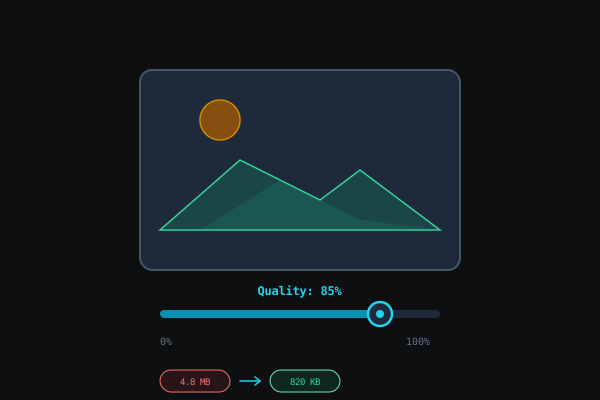
For photographic content, quality settings around 80 (on a 1–100 scale) are the practical ceiling. Above 85 you are paying bytes for detail no one will perceive; below 70 you start to risk visible degradation on faces and skin.
For graphics with sharp edges — screenshots, line art, logos — those same quality values produce ugly ringing artifacts. Either keep them as PNG or export to WebP lossless.
A good default:
- Photographs → JPEG or WebP at quality 80.
- Screenshots / UI → PNG or WebP lossless.
- Icons / logos → SVG if possible, PNG fallback.
Pro tipNever compress a previously compressed JPEG as your source. Each round of lossy encoding compounds the losses from the prior pass. Always keep a lossless master (PNG or original RAW export) and re-encode from that whenever you need a new delivery format.
Resize First, Compress Second
The single most effective compression technique is not compression at all — it is resizing. Serving a 6000×4000 iPhone photo on a page where it will display at 800×600 is like shipping furniture in the original truck and asking the customer to unpack it. The browser has to download the whole file before scaling it down.
Start by resizing the image to the actual maximum display dimensions. Our Image Resizer handles this in a single drag-and-drop, entirely in the browser. After that, apply compression. The savings multiply.
Pick the Right Format in 2026
The web has three strong image formats now. Each has a role.
- JPEG — the safe choice for photographs. Universally supported. Good compression, no transparency.
- PNG — lossless, supports transparency. Great for graphics, overkill for photos.
- WebP — modern successor to both. Supports transparency, animation, and lossless/lossy modes. Produces files typically 25–35% smaller than JPEG at the same perceived quality. Supported in every browser that matters.
- AVIF — even better compression than WebP, but encoding is slow and tooling is still catching up.
The practical recommendation for 2026: ship WebP as your primary format with a JPEG fallback if you care about the tail end of older browsers. If you cannot manage two formats, just use WebP — support is above 96% globally.
Our Image Converter turns any PNG, JPG, or GIF into a WebP in-browser with no upload — and the reverse. Flip the format toggle to handle PNG ↔ JPG, JPG → WebP, WebP → PNG, or any other pair without leaving the page.
Strip Metadata Before You Ship
Photos from phones and cameras carry a surprising amount of metadata: GPS coordinates, camera model, lens info, timestamps, edit history. This metadata is often 20–100KB per image and serves no purpose on your website. Worse, GPS data in particular is a privacy leak if your photos came from someone's home or office.
WarningGPS coordinates embedded in a photo can pinpoint the exact location where it was taken — including a private home or client office. Always strip EXIF metadata from photos before publishing them on a public website or sending them to external parties.
Every properly configured image compressor strips metadata by default. If you are working with vector art, our SVG Optimizer performs the equivalent cleanup — removing editor metadata, invisible layers, and redundant precision from SVG files.
A Repeatable Workflow for Social Media Assets
Different platforms demand different specs, but the core recipe is the same:
- Start from the highest-quality master you have. Never compress a compressed image.
- Resize to the platform's native display size. Instagram square is 1080×1080. Twitter in-feed images are 1200×675. LinkedIn article covers are 1200×628. Matching these exactly means the platform does not re-encode your image and introduce a second round of quality loss.
- Export as JPEG at quality 85 for the primary file.
- Generate a WebP backup at quality 80 for your own website or email embeds.
Our Social Media Asset Bundle workflow chains the resize, JPG, and WebP steps into a single minute-long flow.
Why Browser-Based Compression Matters for Privacy
When you upload an image to a typical "free online compressor," the file lives on their server until some retention policy deletes it. For a personal photo or a product mockup, that can be fine. For a signed contract screenshot, an internal dashboard, or anything covered by an NDA, it is a problem.
Browser-based compression sidesteps the question. Your image never leaves your device. For most people this is not about paranoia — it is about the slightly embarrassing realization, one year later, that the "free tool" they used was saving every file they processed to train a model.
NoteA hero image that drops from 4 MB to 150 KB routinely improves Largest Contentful Paint (LCP) by 1–2 seconds on mobile. That is often the difference between a "Poor" and "Good" Core Web Vitals rating — and between ranking on page one and page two.
The Impact on SEO and Core Web Vitals
Google's Core Web Vitals — Largest Contentful Paint (LCP), Interaction to Next Paint (INP), and Cumulative Layout Shift (CLS) — all penalize heavy images:
- LCP is almost always the hero image. A compressed WebP cuts LCP by a second or more on mobile.
- CLS is triggered when images load without reserved dimensions. Always set width and height attributes.
- INP can be indirectly helped — smaller images free the main thread and reduce memory pressure on mid-range phones.
Pages that score well on Core Web Vitals rank higher. There is no elegant way to say it: if your images are heavy, Google is pushing you down the page.
Frequently Asked Questions
How small is too small? Once artifacts become visible at normal viewing distance (around arm's length on a phone, 24 inches on a monitor) you have gone too far. Bump the quality back up 5 points and re-export.
Should I compress an already-compressed JPEG? Usually no — each compression pass loses a little more detail. Keep a lossless master somewhere and re-export from that.
Why do my PNG screenshots weigh so much? PNG is inefficient for photographs. Screenshots of UI with sharp text are fine, but screenshots of dashboards with rendered charts often compress dramatically better as WebP.
Will compression hurt my images on retina displays? Not if you export at 2× the display size. A 1080×1080 Instagram post looks perfect even on a 6K iMac because the platform serves the image at its native dimensions.
Takeaway
Compression is a chain: resize, choose the right format, pick a sensible quality, strip metadata. Each step is a multiplier. Do all four well and you will routinely cut image weight by 90% with no visible loss. That is the difference between a slow site and a fast one, a bounced email and a delivered one, a Core Web Vitals score of 60 and a score of 95.