The Consultant's File Prep Playbook: Send Clean, Professional Documents Every Time
Client-facing documents are your reputation in file form. A complete playbook for preparing proposals, reports, and contracts that arrive clean, compressed, and metadata-free.
In this article
The document you send to a client is a physical artifact of how you work. A bloated PDF named "final draft v4 SEND THIS.pdf" with your previous client's name in the Document Properties says something about you that no cover letter can unsay. A clean, compressed, precisely named file named "Acme-Inc-Proposal-2026-05-16.pdf" says something else.
Consultants, freelancers, and small agencies live and die by first impressions and trust. The documents you produce and deliver are part of that picture. The good news is that file preparation is a learnable, repeatable process — one you can run in under five minutes before every send.
Why Document Presentation Matters for Consultants
You already know that the content of a proposal or report matters. What is less obvious is how much the presentation of the file itself signals competence.
A file that bounces because it is too large for the client's email gateway is embarrassing. A file that arrives with the previous client's name in the Author field — visible under File → Properties — is worse. Tracked changes from an internal reviewer that were not fully accepted before PDF export are a confidentiality failure. A filename that makes no sense when it lands in the client's Downloads folder is a small but real friction point.
None of these are catastrophic errors individually. But they accumulate. They create the impression of a vendor who does not sweat the details — which is exactly the impression a consultant cannot afford.
WarningPDF metadata is invisible in the normal reading view but trivially accessible via File → Properties. A sophisticated client — or their IT team — can open it in under ten seconds. Author fields showing a previous client's name, or tracked change comments from an internal reviewer, are a confidentiality failure that cannot be undone after sending.
The Metadata Risk Most People Don't Think About
PDF metadata is invisible to most recipients but not to all of them. A sophisticated client — or their IT team — can open Document Properties in under ten seconds and see:
- Author: the name of whoever saved the final Word document. Often an employee from a previous engagement, or a contractor, or someone who left the firm.
- Creator: the software used to create the file, including the version number. This is harmless but unnecessary.
- Subject and Keywords: sometimes auto-populated by document management tools, sometimes containing internal project codes or client names you did not mean to expose.
- Tracked Changes: if the source was a Word document, comments and tracked changes survive in the exported PDF unless explicitly removed before export.
- Comment author names: even when comments are resolved in Word, the author metadata often persists in the PDF.
The fix is two steps: resolve all tracked changes and comments before exporting, and strip metadata from the final PDF.
The File Prep Workflow
Step 1: Resolve and Clean the Source Document
Before you generate the PDF, work in the source file. In Word or Google Docs:
- Accept all tracked changes (Review → Accept All → Accept All Changes).
- Delete all comments (Review → Delete → Delete All Comments in Document).
- Check the author name in File → Info → Properties. If it shows someone else's name, update it before exporting.
- Remove any content that should not reach the client: internal notes in text boxes, hidden slides, draft watermarks.
Step 2: Export to PDF Cleanly
Do not print-to-PDF from a draft with comments still open. Export deliberately:
- In Word: File → Export → Create PDF/XPS. Do not use print-to-PDF — the export option produces a cleaner, smaller, more accessible PDF.
- In Google Docs: File → Download → PDF Document. Check that your document is fully resolved before this step.
- In Figma or design tools: export as PDF from the File menu, not by screenshotting or printing.
After export, immediately rename the file to your final delivery convention before doing anything else. It is much easier to apply the naming convention now than to hunt for the right file later.
Step 3: Compress
A proposal PDF with one or two embedded diagrams should not weigh more than 2–3MB. If it does, run it through a compressor before sending.
Our PDF Compressor runs entirely in your browser — your document never touches a third-party server. For client documents, this is not a nice-to-have, it is a requirement. Uploading a confidential proposal to a server-side compression tool creates a copy of that document in someone else's infrastructure.
ImportantBrowser-based compression is the only responsible choice for client-facing documents. Server-side tools create a copy of your proposal or contract on their infrastructure, regardless of their privacy policy. For NDAs, proposals, and rate cards, local-only processing is non-negotiable.
Use the Standard compression level for most proposals and reports. Use High for documents with many embedded images, such as annual reports with charts or case study decks.
Step 4: Merge Related Documents
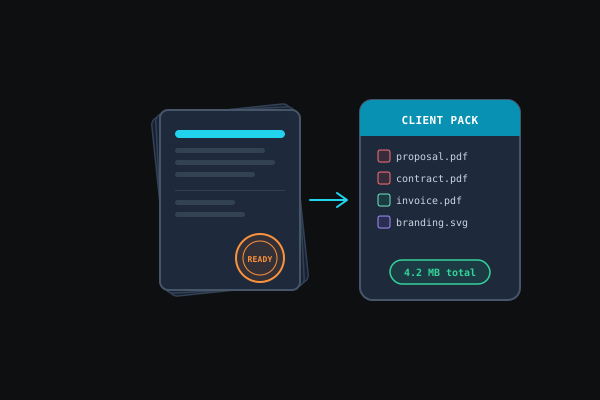
If your delivery includes multiple files — a proposal, a statement of work, and a rate card — consider merging them into a single well-organized PDF. One file is easier for the client to download, sign, and archive than three.
A good merged document:
- Opens on a clear cover page.
- Has a logical section order that matches the email explaining it.
- Uses a single consistent filename.
Our Merge & Split PDF tool handles the merge in the browser without any upload.
Step 5: Name It Like a Professional
Use this naming pattern: [Client]-[Document-Type]-[Date].[extension]
Examples:
Acme-Inc-Proposal-2026-05-16.pdfJohnson-Partners-SOW-2026-04-01.pdfMeridian-Group-Quarterly-Report-Q1-2026.pdf
Rules:
- Use ISO date format (YYYY-MM-DD). It sorts correctly in every file manager.
- No spaces. Use hyphens.
- No version numbers. "v3-final" belongs in a project management tool, not the filename your client receives. The client should always receive one file — the final one.
- Lowercase for internal use, title-case for client delivery. Most clients expect title-cased filenames.
Pro tipBefore you hit send, open the compressed PDF, go to File → Properties (or Document Properties in your PDF reader), and verify that Author, Creator, and Subject contain only what you intend the client to see. This takes thirty seconds and has saved more than one consultant from an embarrassing disclosure. Make it the last step every time.
When to Use a Shared Link Instead of an Attachment
For documents over 10MB, switch from attachment to link. Email gateways enforce size limits unpredictably — a file that passes through Gmail may bounce from your client's corporate mail server.
Use a shared link when:
- The total attachment size exceeds 8MB.
- The document will need to be updated after sending.
- The document is sensitive enough that you want to be able to revoke access.
When using a link, name the linked file with the same convention you would use for an attachment. The filename the client sees when they download from Drive or Dropbox is the filename you control.
The Five-Minute Pre-Send Routine
Run this before every client delivery:
- All tracked changes accepted, all comments deleted in source document.
- Author field in source document shows the right name.
- PDF exported cleanly from the source, not print-to-PDF from a draft.
- PDF compressed to under 5MB.
- Filename follows the convention. No spaces. No version numbers. ISO date.
- Document Properties inspected — Author, Creator, Subject clean.
- File opened and first two pages verified before attaching.
Takeaway
Professional document delivery is a habit, not a talent. The five-minute pre-send routine above catches every common mistake: bloated files, stray metadata, tracked changes, confusing filenames. Run it once for every client document and you will stop worrying about what is hiding in the file you just sent. Your clients will probably never comment on it — clean files rarely get noticed. But messy ones always do.